Raffle flyer templates that sell tickets from the bulletin board
Six fillable flyer styles with a spot for your logo and a spot for a QR code, so anyone who walks past can buy a ticket from their phone. Click any text, type over it, print.
Get the free flyers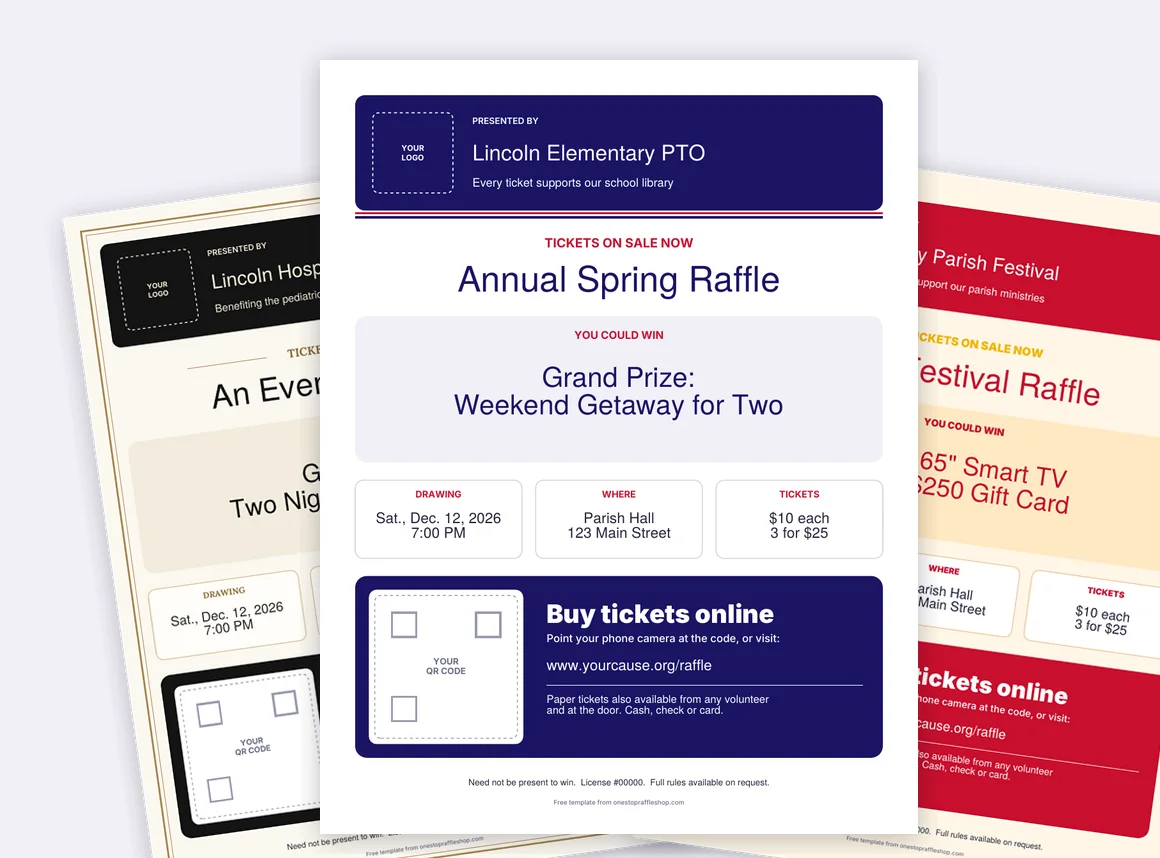
Pick your style
One download gets you all six. Every flyer has the same layout: who’s running it, the prize, when and where, the ticket price, and a big “buy tickets online” block with your QR code.
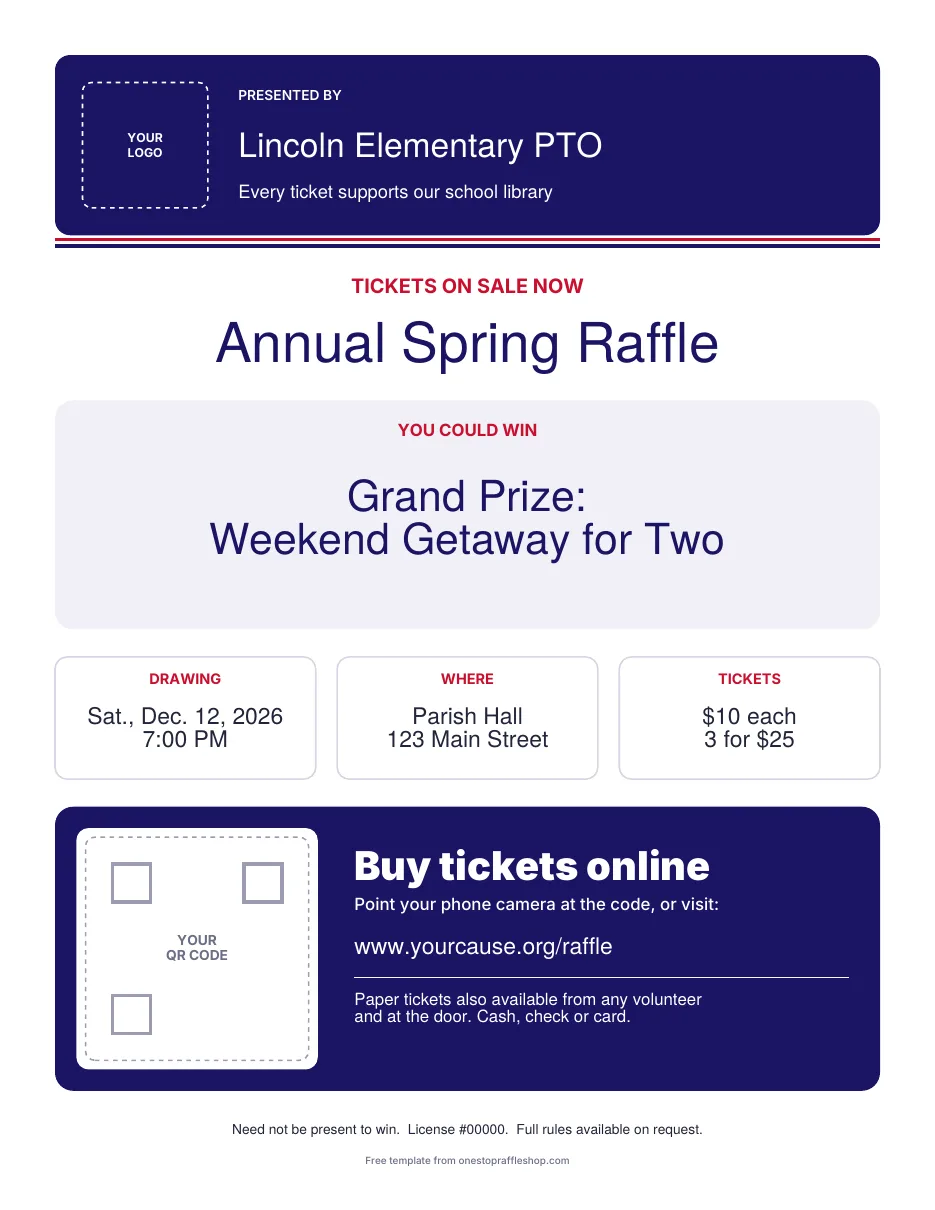
Classic
Navy, red and white. Works for any cause and looks sharp on white or light blue paper.
- Fillable PDF
- Logo spot
- QR spot
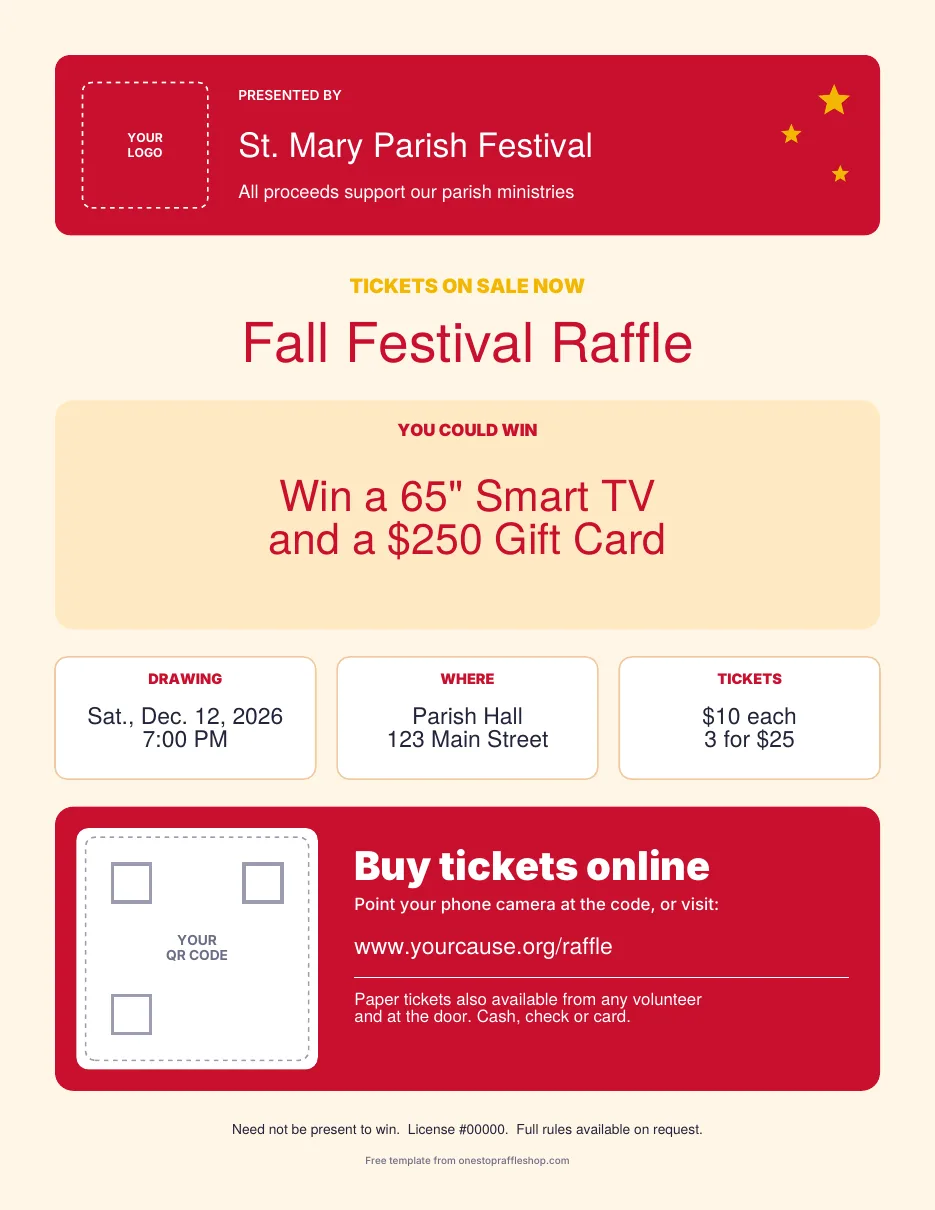
Carnival
Bold red with gold stars. Built for festivals, fairs and big-prize drawings.
- Fillable PDF
- Logo spot
- QR spot
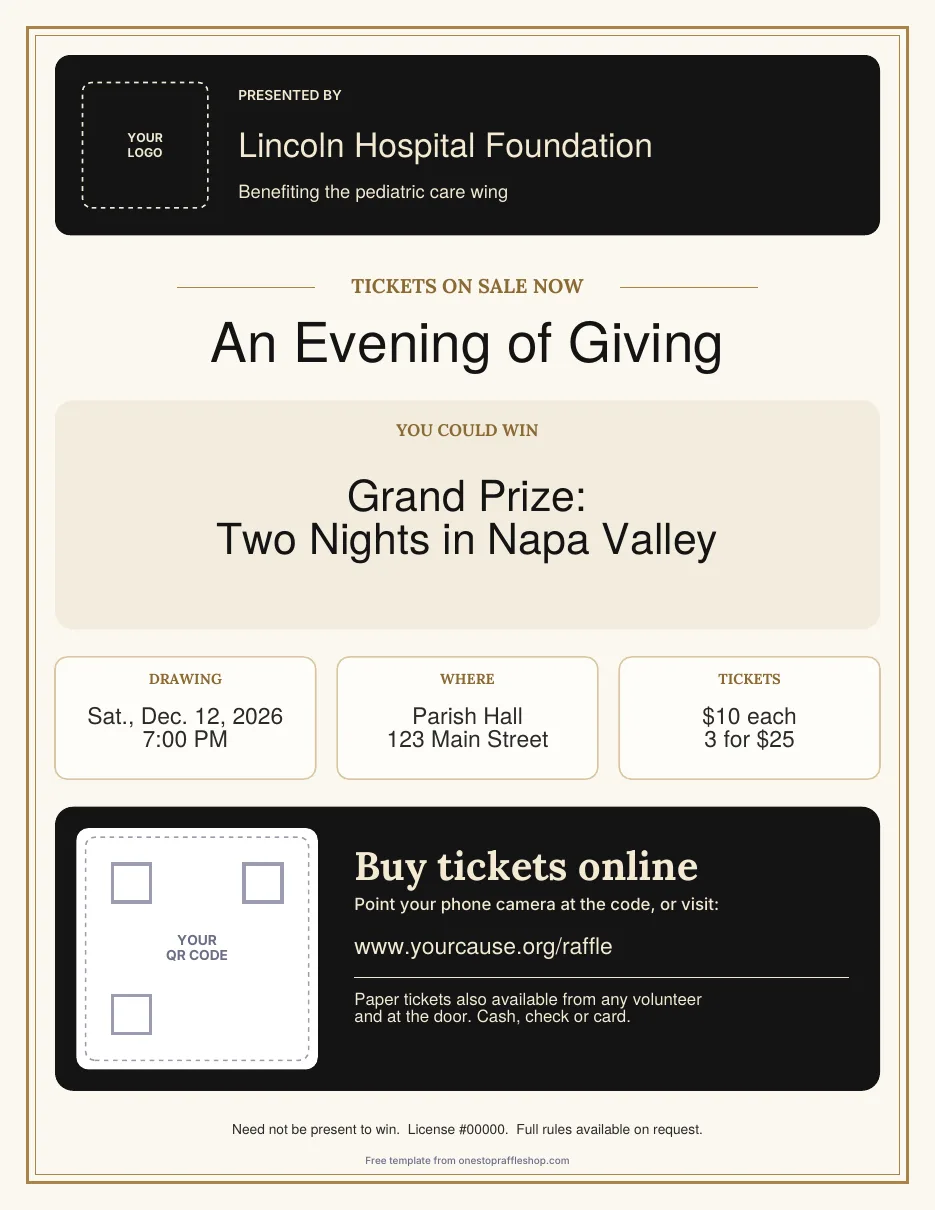
Elegant Gala
Black, ivory and antique gold with a classic border. For dinners, galas and auctions.
- Fillable PDF
- Logo spot
- QR spot
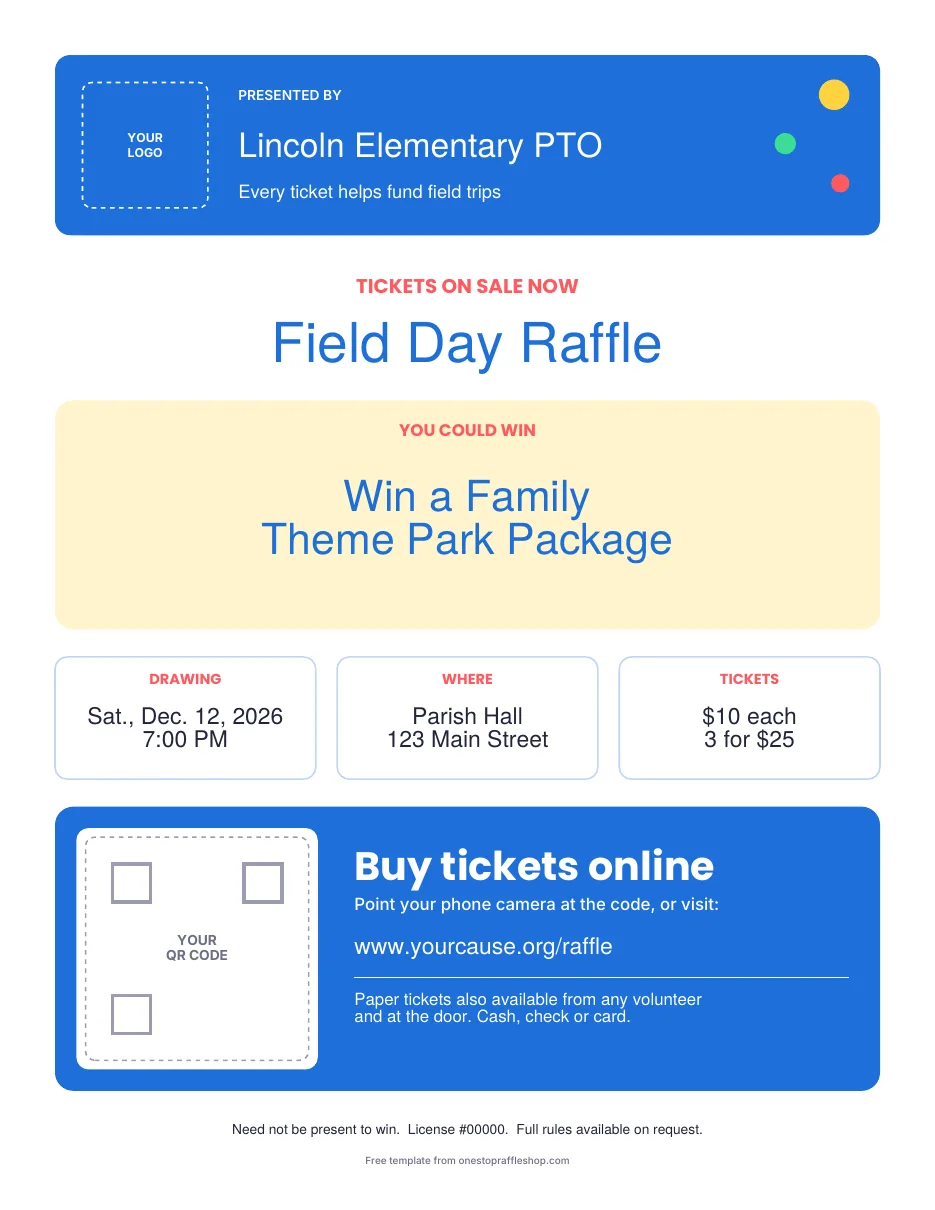
School & PTO
Bright blue and cheerful. Made for take-home folders and the front office window.
- Fillable PDF
- Logo spot
- QR spot
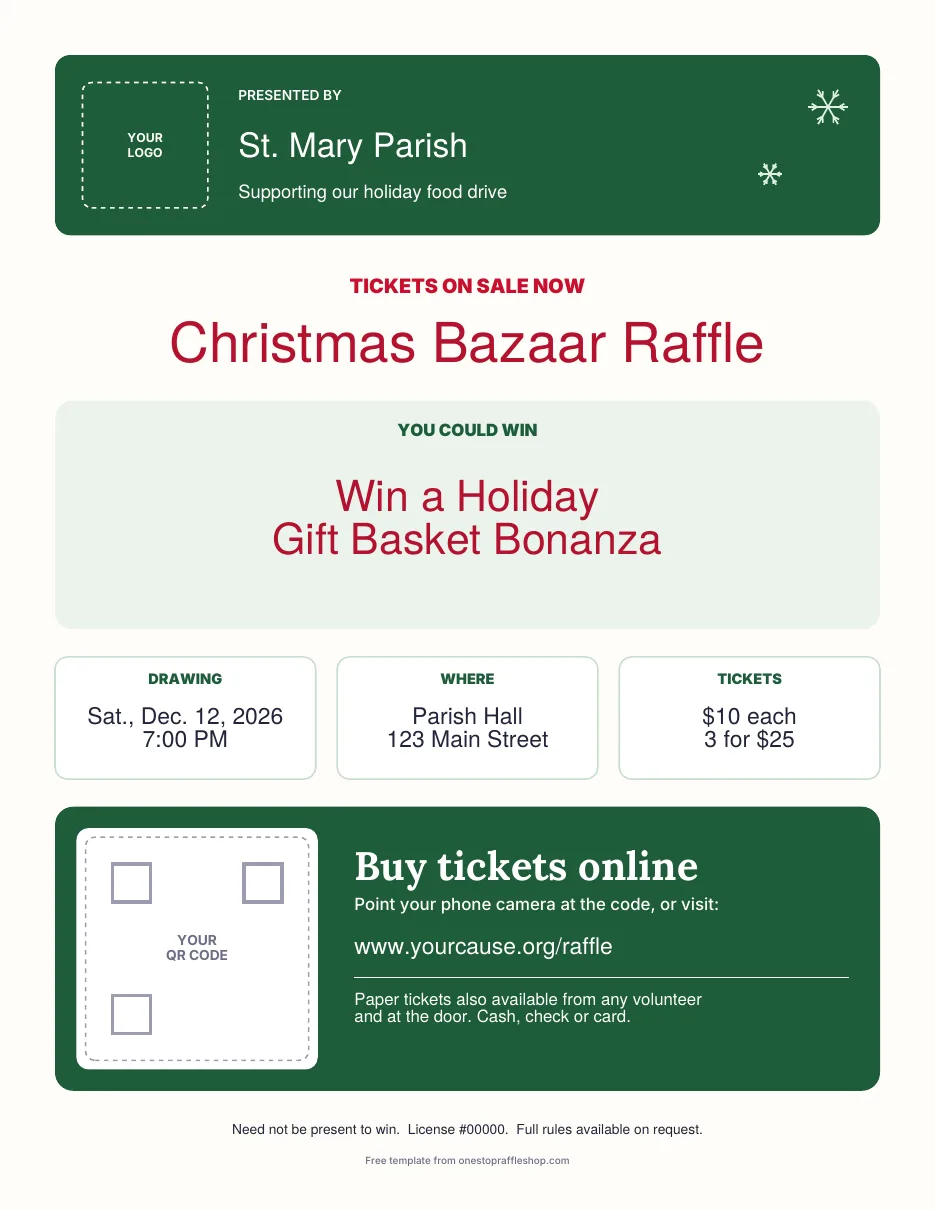
Holiday
Evergreen and cranberry with snowflakes. For Christmas bazaars and winter drives.
- Fillable PDF
- Logo spot
- QR spot
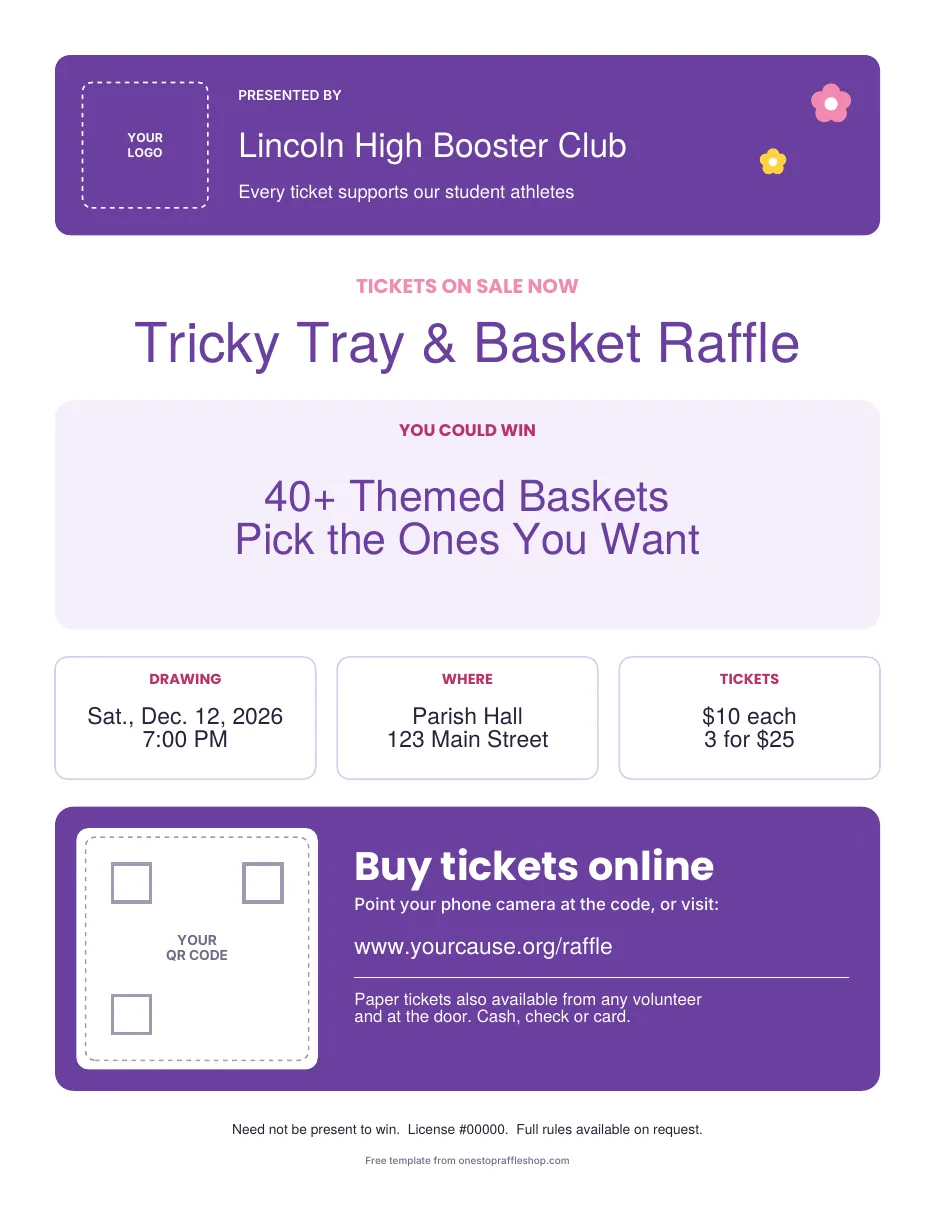
Basket Raffle
Purple and pink for tricky trays and basket bonanzas. Brag about how many baskets you have.
- Fillable PDF
- Logo spot
- QR spot
What’s on every flyer
- Your organization and a one-line reason to buy. “Every ticket supports our school library” does more selling than you’d think.
- The raffle name and the prize, big. The prize is what stops people walking past. Lead with it.
- Drawing date and time, location, and ticket price, with room for bundle pricing like “3 for $25.”
- A “Buy tickets online” block with a QR code spot and your web address, plus a line for where to get paper tickets.
- A fine-print line for your license number and “need not be present to win.”
- A logo spot at the top.
How to fill it in
- Type over the sample text. Open the PDF and click any words on the flyer. Every block is a fill-in box. Works in Adobe Reader, Chrome, Edge and Mac Preview.
- Make your QR code. Paste your ticket page link into the free QR code maker below and download the image.
- Add the QR code and your logo. In the free Adobe Acrobat Reader, click the dashed “Your QR Code” box and pick the image. Do the same for “Your Logo.”
- Test the code. Point your phone camera at the screen. If it opens your ticket page, you’re good.
- Print at 100%. Choose actual size. Bright or card stock paper gets noticed on a crowded bulletin board.
Flyers that actually sell tickets
- Put the prize first, the cause second. People stop for the prize and buy for the cause.
- Always include a way to buy right now. A flyer with only a date and a place asks people to remember. A QR code lets them buy while they’re standing there.
- Post them where people wait. Coffee shops, the school pickup line, church vestibules, the gym front desk.
- Swap flyers in the last week. A fresh one that says “Drawing this Saturday” gets a second look.
Free QR code maker for your raffle
Paste the link to the page where people buy tickets. You’ll get a high-resolution QR code to drop into your flyer, your newsletter or a table tent at the event.
Paste the link where people buy tickets. Your code is made right here in your browser.
Test it with your phone camera before you print. In Adobe Reader, click the “Your QR Code” box on the flyer and pick this file.
No online ticket page yet? Chance2Win gives your raffle one, link and all.

Free book
Want the whole playbook?
Raffle Mastery by T. S. Leonard covers pricing, prizes, promotion, the legal stuff and drawing day, in plain English and with a few stories you won’t believe.
Free download with newsletter signup on chance2win.org.
Raffle flyer FAQ
What should a raffle flyer include?
Who’s running the raffle, what the prize is, when and where the drawing happens, how much tickets cost, and how to buy one. Add your license number if your state requires it, and a QR code so people can buy online on the spot.
How do I put a QR code on a raffle flyer?
Make the QR code image with the free maker on this page, then open the flyer in Adobe Acrobat Reader and click the dashed “Your QR Code” box to add the image. Browser PDF viewers can’t add images, so use Adobe Reader for that one step.
Where should the QR code on a raffle flyer go?
Somewhere it can’t be missed, with a short line telling people what it does, like “Scan to buy tickets.” Our flyers put it in its own block near the bottom, next to your web address for anyone who’d rather type it.
Can I edit the flyer without Adobe?
Yes. All the text fills in with Chrome, Edge or Mac Preview. You only need the free Adobe Acrobat Reader to add your logo and QR code images.
What size should a raffle flyer be?
Standard letter size (8.5 by 11 inches) fits every bulletin board and prints on any home printer. For a bigger poster, most print shops can enlarge the PDF to 11 by 17.
We don’t have an online ticket page. Can we still use the flyer?
Sure. Type where to buy paper tickets into the online block instead. If you’d like a real online ticket page, Chance2Win builds one for your raffle, and paper and online sales go into the same drawing.
Can we print the flyer in black and white?
You can. The Classic and Elegant Gala styles hold up best in black and white. On bright colored paper, they look like you meant it.
Related templates
Need a page for that QR code to open?
Chance2Win gives your raffle its own website. Supporters scan your flyer, pick their tickets on their phone and get their numbers by email. Your paper ticket sales go into the same drawing.